Signing up and creating your business
Create a free WaitYa account, name your business, and choose where visitors are called to. Done in two steps.
Updated 1 min read
Before you start
An email address you can open, since the code that opens the queue is sent there.
- 1
Enter your name, email, and password
Open app.waitya.com/register, then enter your name, email, and a password of at least 8 characters. Press Continue.
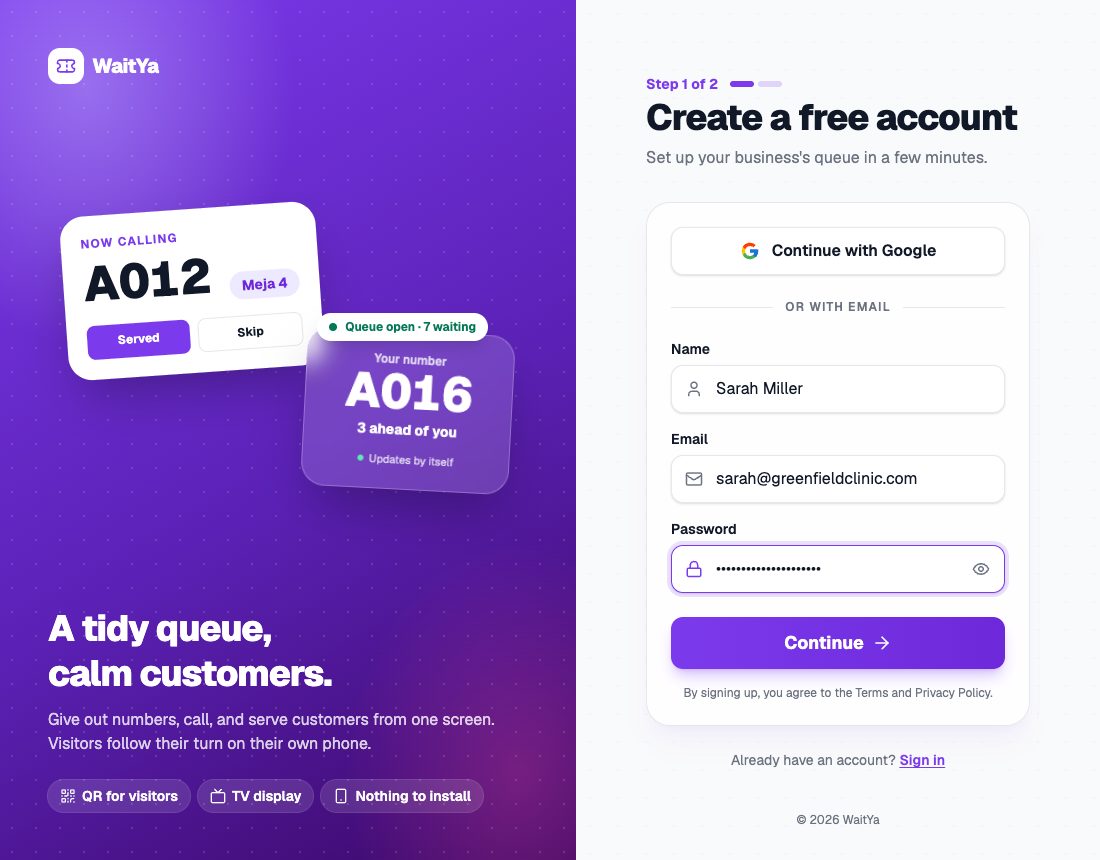
Step 1 of 2, the name, email, and password form. - 2
Tell us about your business
Enter the Business name. The public link address is made from the name, and you can change it. Then choose where visitors are called to, such as Table, Room, Chair, Counter, or Technician, or type your own under Other. Press Done.
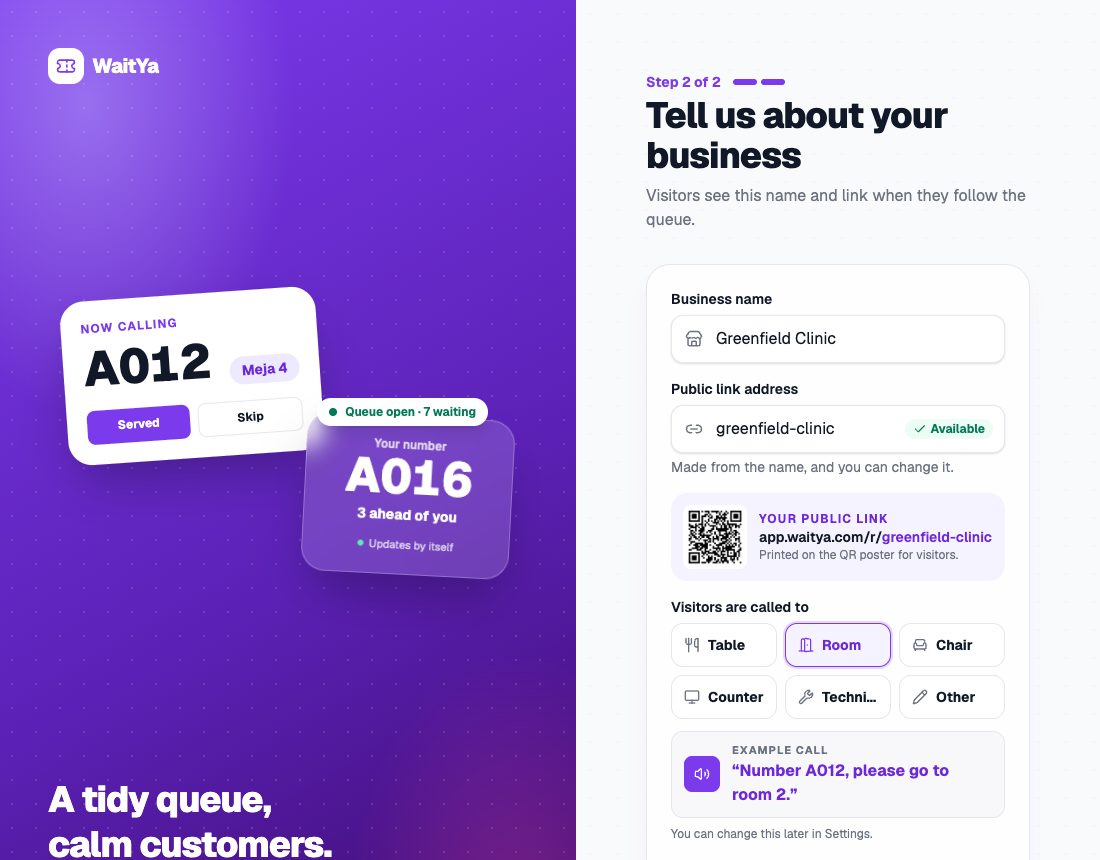
Step 2 of 2, the business name, public link address, and call destination choices. - 3
The dashboard is ready
The dashboard opens with the queue still closed. Getting started shows what is left to do, and Share with visitors has the link and QR to put up at your business.
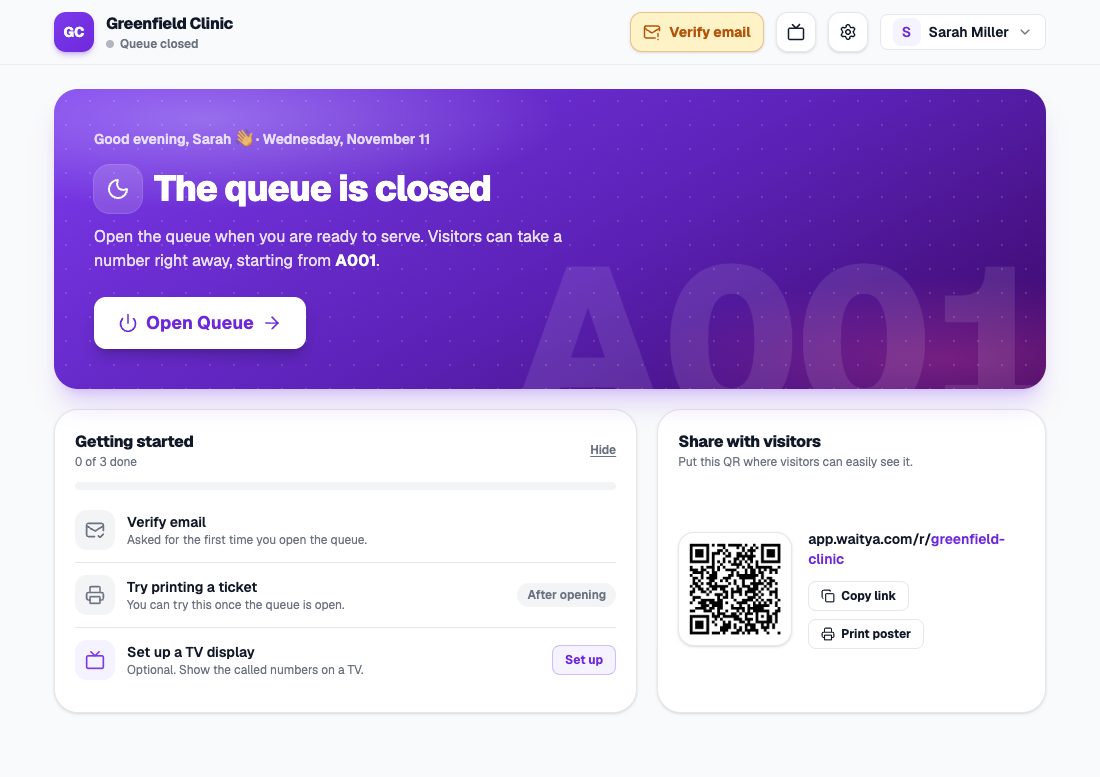
The dashboard after signing up, with the Open Queue button, Getting started, and the QR for visitors.
You can change it later
The business name, public link address, and call destination can be changed at any time in Settings → Business Profile and QR & Link. The old link address still opens the same page, so QR codes you have already printed keep working.
One account, one business
The free version covers one business per account, with core queue features and no time limit.