Taking numbers and printing tickets
Make a queue number with one tap. Visitors get a QR to follow their turn on their phone, and you can print a ticket on a thermal printer.
Updated 1 min read
Before you start
The queue is open. See Verifying your email and opening your first queue.
- 1
Press Take a Number
A small form opens, and every field is optional. Add a name or party size if it helps. Fill in the destination, such as room 2, if you already know where the visitor will be called to. Press Take a Number.
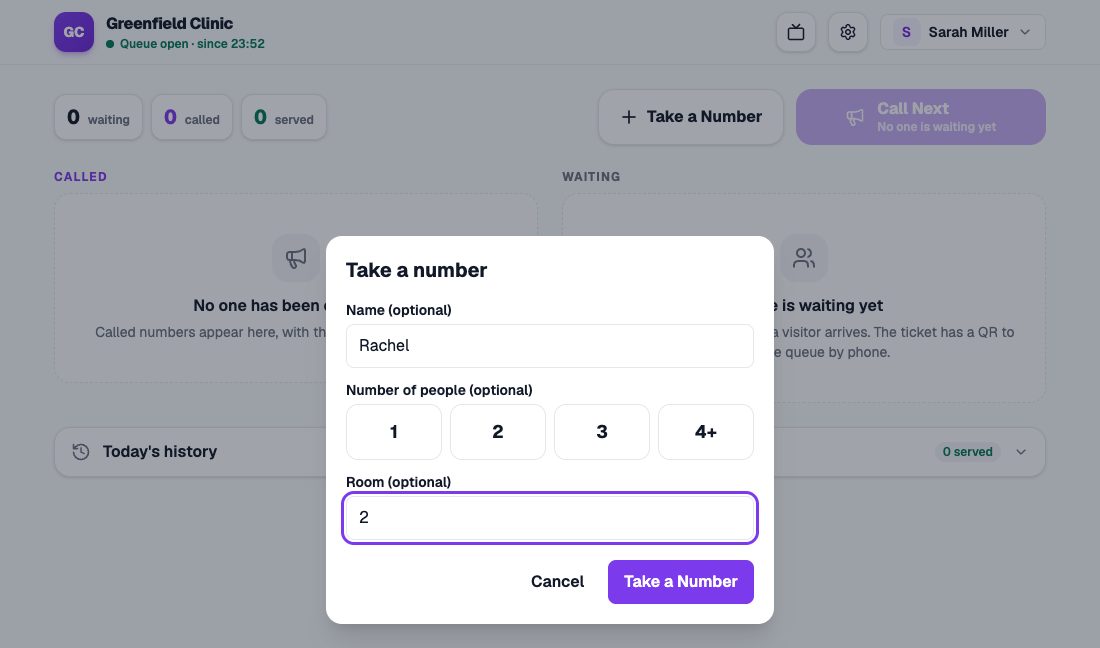
The Take a number dialog with name, party size, and destination, all optional. - 2
Show the QR, or print the ticket
The new number shows with a QR. The visitor scans it to follow their turn on their phone, with no app to install. Press Print Ticket if you use a thermal printer.
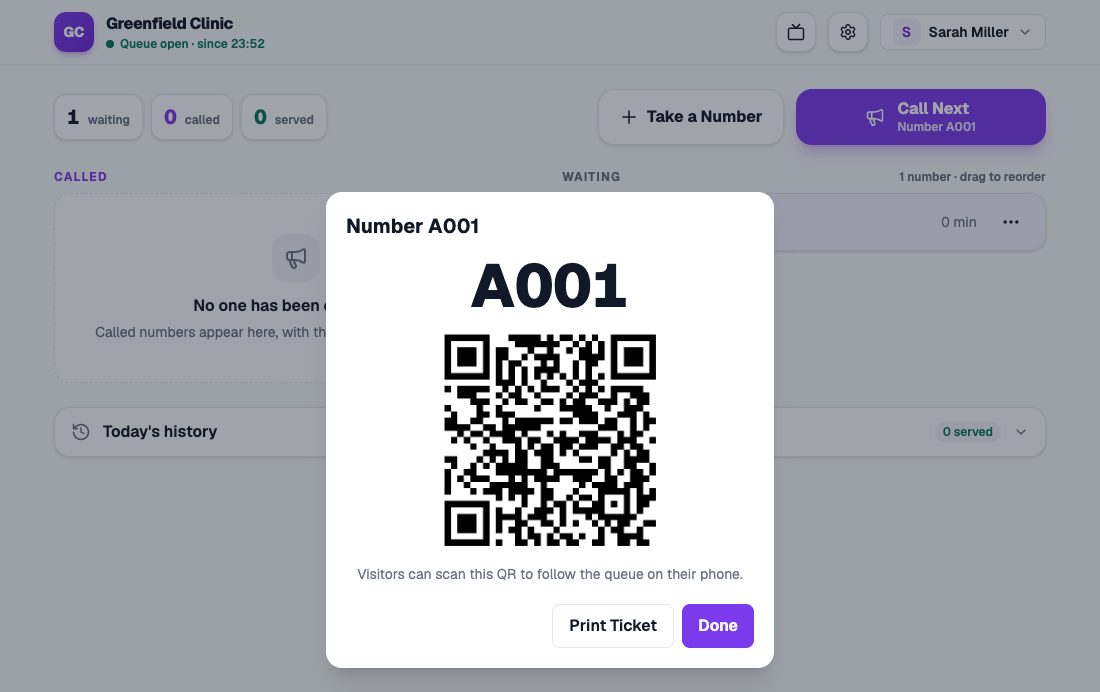
Number A001 with a QR for the visitor and the Print Ticket button.
Numbers go in order
Numbers are made for you: A001, A002, and so on. You can change the order by dragging rows in the Waiting list, and change a number’s details with the ⋯ button on its row.
Visitor names are masked
On the queue page that anyone can see, names are only partly shown, such as Ra***. Full names only show on your dashboard.