Account and security
Change your WaitYa account's name, email, password, and language, and sign out every device signed in to your account.
Updated 1 min read
- 1
Open Settings, then Account
Here you find Name, Email, Password, App language, and Devices. The summary on the right shows how you sign in and your email status.
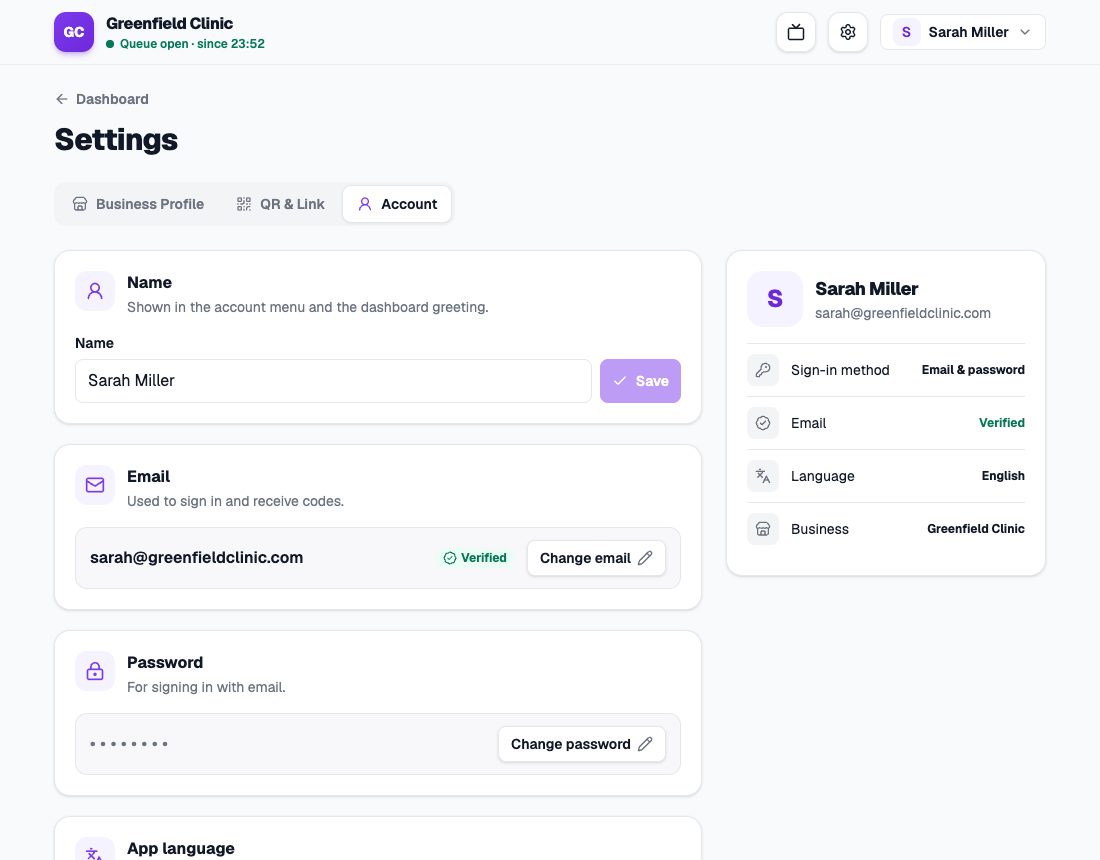
The Account page with name, email, and password. - 2
Changing your email
Press Change email, enter the new email and your current password, then Send code. Enter the 6-digit code sent to the new email. Your old email stays in use until the code is entered. Once it changes, the old email gets a notice with a link to undo the change for 7 days.
- 3
Changing your password
Press Change password, enter your current password and a new one of at least 8 characters. Other devices are signed out and need to sign in again with the new password. The device you are using stays signed in.
- 4
Sign out all devices
In the Devices card, press Sign out all devices. Every device signed in to this account is signed out at once, including the one you are using. TV displays keep running.
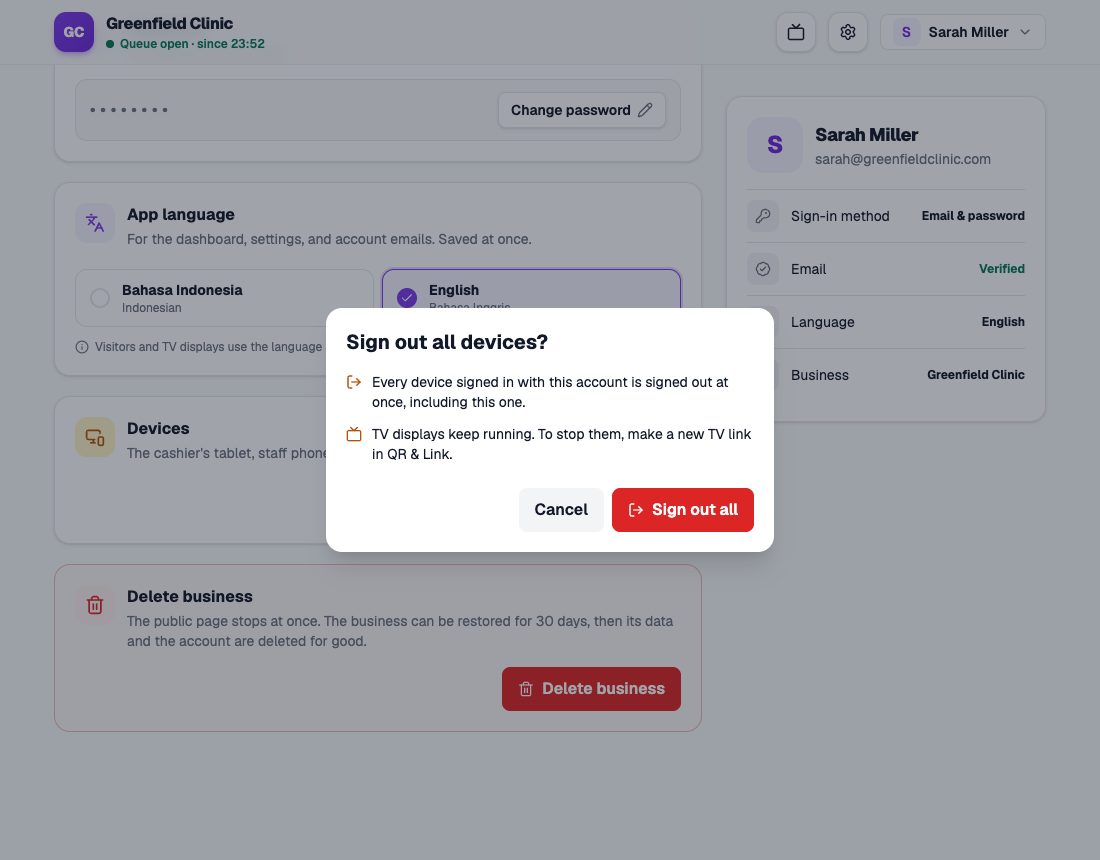
The Sign out all devices confirmation.
App language
Under App language, choose Indonesian or English for your dashboard, settings, and account emails. It is saved at once. It doesn’t change what visitors see, which is set in the business profile.
Forgot your password?
On the sign-in page, choose Forgot password?. A link to create a new password is sent to your email and works for 30 minutes.
Lost a staff phone?
Use Sign out all devices, then change your password. To stop TV displays too, make a new TV link in QR & Link.