Changing the public link and TV link
Change your queue's link address without breaking old QR codes, and make a new TV link and code so old displays stop showing the queue.
Updated 1 min read
- 1
Change the link address
Open Settings → QR & Link. In the Change link address card, type the new address, using lowercase letters, numbers, and hyphens. When it says Available, press Save address. The old link keeps working, so QR codes you have already printed still bring visitors to your queue.
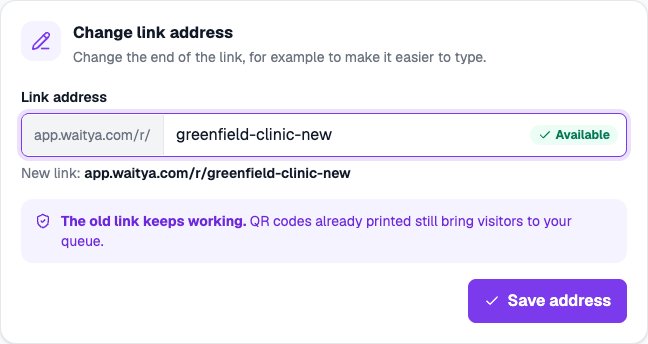
The Change link address card with a new address that is available. - 2
Make a new TV link and code
In the TV display card, press Make a new link and code, then Make new ones. TV displays already set up stop showing the queue at once, and each one needs to be connected again with the new link or code.
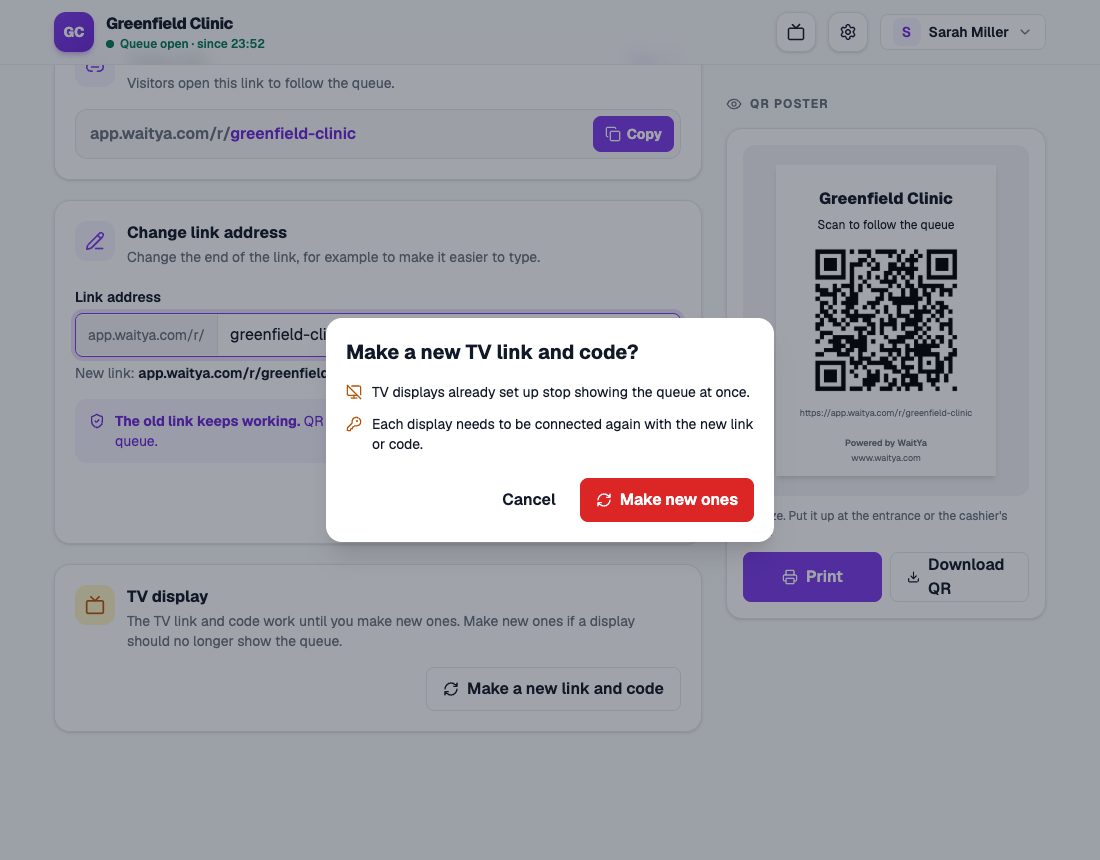
The Make a new TV link and code confirmation.
When to make a new TV link
When a display should no longer show the queue, for example a TV moved somewhere else or its link reached other people.